SAR Table Generation
To use the SAR Table Generation function you must have a subscription.
Try all of the functionality free for 13 days, all you need to do is create an account using the link below and start a subscription.
Create an accountBelow we have a simple example of some molecules
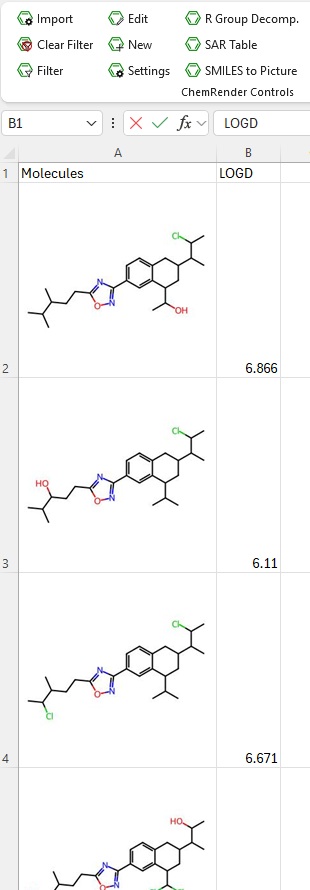
With some molecules in place we can now run the SAR Table Generation function.
Clicking the SAR Table button will open a dialog box.
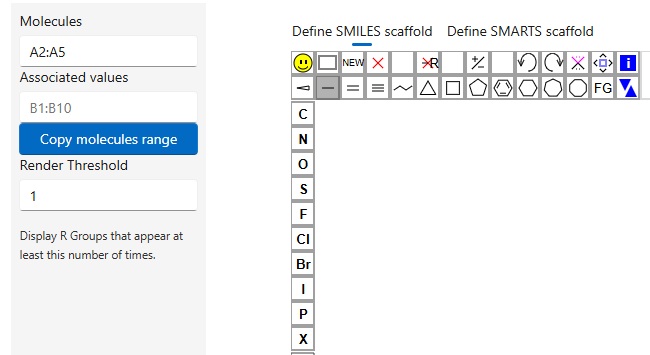
On the left, you can see the range of cells that the code has identified as containing SMILES (or images that were once SMILES). It’s worth noting that the identification isn’t 100% accurate so make sure you check the range.
Before the Molecules range is the associated values range, in the example we're using LogD values, but this is could be column containing any values. The number of cells must match (albeit in different columns, there can't be any gaps).
The render threshold allows you to filter out sub-substructures that may appear more than once.
Once you’re happy define the core you wish to use.
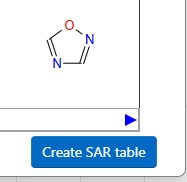
Once you have defined the core click Create SAR Table.
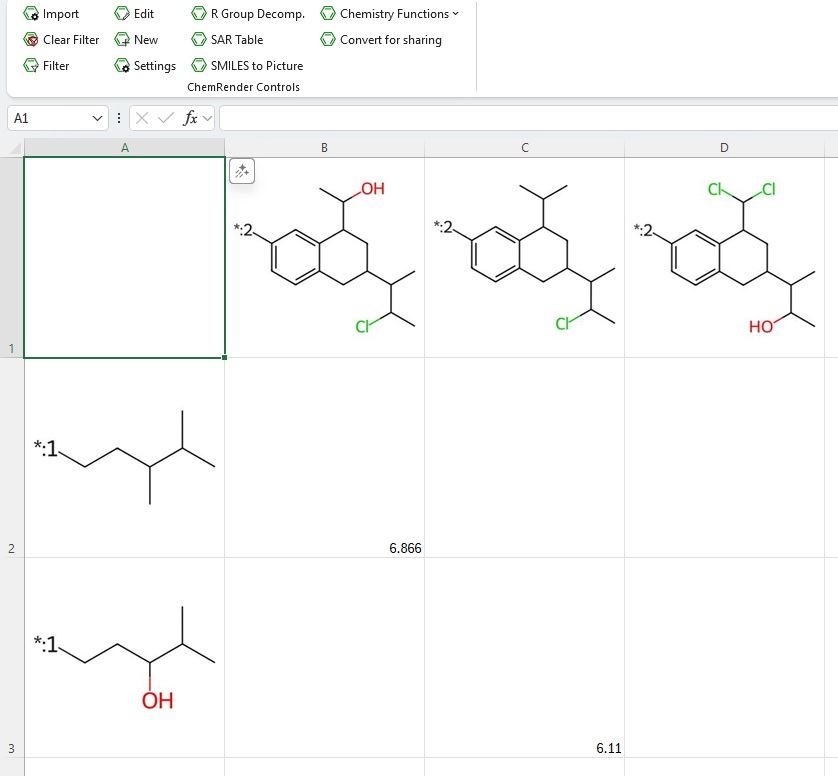
A new sheet will be created containing the resulting SAR Table.